
Become a Git God with Lazygit
Written by Guglielmo Bartelloni
Intro
Imagine you want to commit a change to Git. How do you go about this?
Maybe you go to the command line and type every command by hand:
git add .

git commit -m "message"

git push
But watch how I do it:
Not only that, but if I want to create a new feature branch with a new change, I can do that easily with Lazygit:
All with Vim motions and without a mouse.
Let’s see how Lazygit makes my dev life a hundred times better.
Lazygit
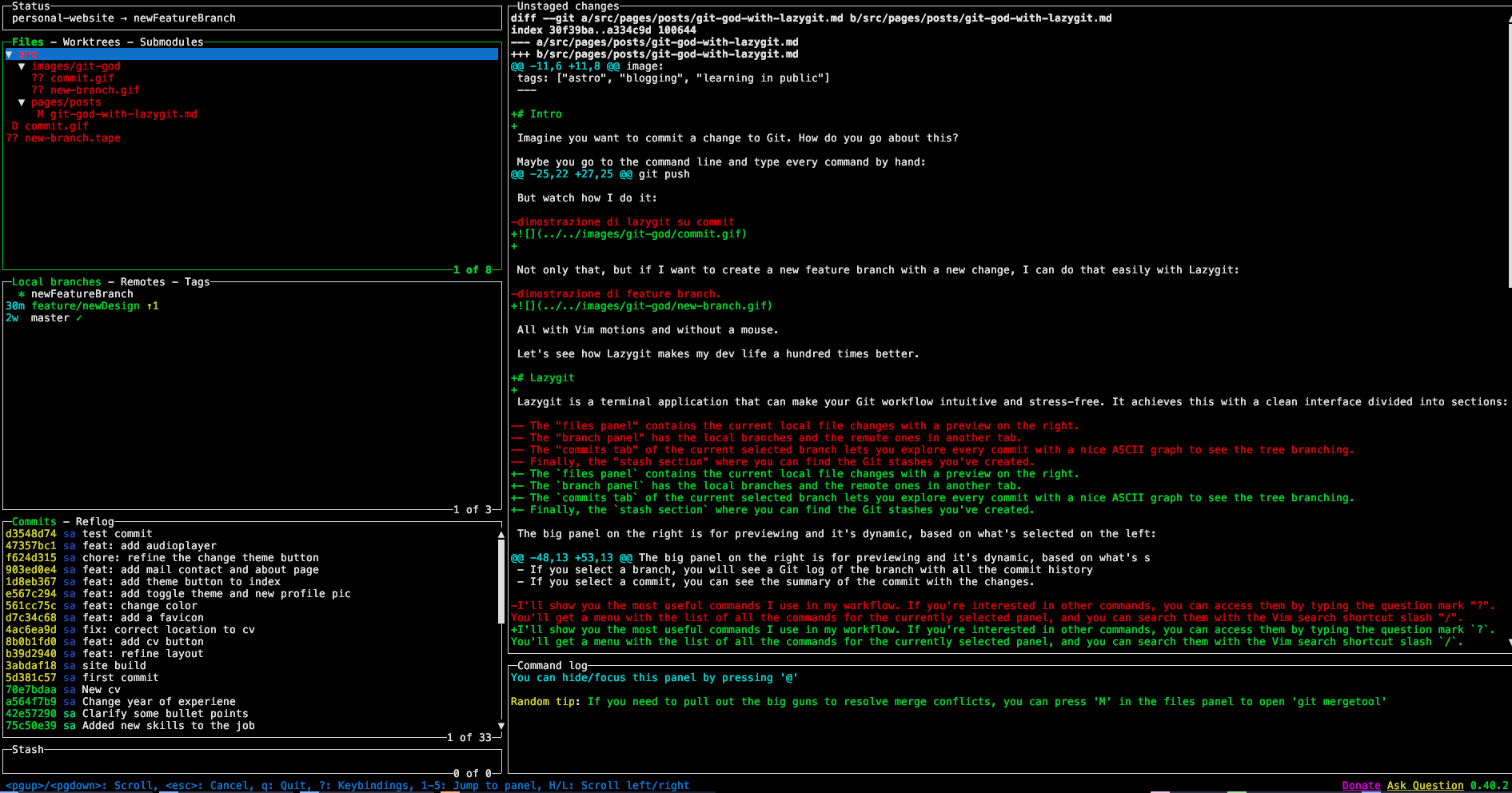
Lazygit is a terminal application that can make your Git workflow intuitive and stress-free. It achieves this with a clean interface divided into sections:
- The
files panelcontains the current local file changes with a preview on the right.
- The
branch panelhas the local branches and the remote ones in another tab.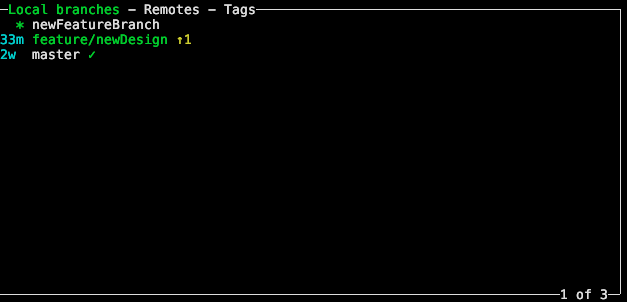
- The
commits tabof the current selected branch lets you explore every commit with a nice ASCII graph to see the tree branching.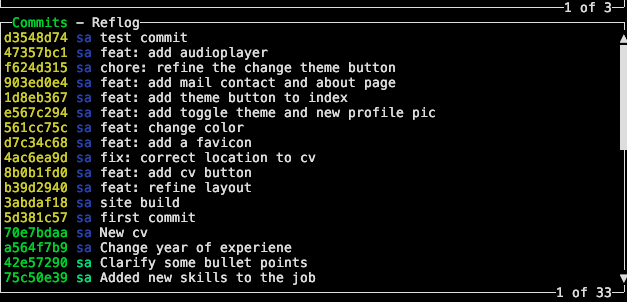
- Finally, the
stash sectionwhere you can find the Git stashes you’ve created.
The big panel on the right is for previewing and it’s dynamic, based on what’s selected on the left:
- If you select a file, it will show a preview of the changes
- If you select a branch, you will see a Git log of the branch with all the commit history
- If you select a commit, you can see the summary of the commit with the changes.
I’ll show you the most useful commands I use in my workflow. If you’re interested in other commands, you can access them by typing the question mark ?. You’ll get a menu with the list of all the commands for the currently selected panel, and you can search them with the Vim search shortcut slash /.
In the files tab, the most useful command is the a, which stages all the changed files. You can also select them one by one by pressing space.
After you’ve staged your files, you can create a commit with the c command. This will open an input field to type the content of the commit. You can press tab to go to the description section. If you press Enter, the commit will be created, as you can see on the bottom in the commit panel.
If you press capital P, you’ll push the commit to the remote of the current selected branch.
To create a new local branch, hit Tab to go into the branch panel. From here, hit n, name the branch, and hit enter.
Now you have a new branch created from the previously checked-out branch. If you hit Space, you can checkout the branch, and this works for remote branches too.
Another useful command is the pull command. By hitting p, it will pull the latest changes from the currently checked-out branch.
A feature I use a lot at work is custom commands. I created a nice menu to create commits following the conventional commit standard, making it easier to do them. Let’s see this in action.
It’s triggered by pressing capital C, showing a nice menu with all types of commits and their descriptions. If I select one, I can create a commit following the standard. As you can see, the potential is incredible.
You can create custom commands by going into the Lazygit config and adding the custom command section with options. I’ll leave mine here (credits):
customCommands:
  - key: "C"
    command: 'git commit -m "{{ .Form.Type }}{{if .Form.Scopes}}({{ .Form.Scopes }}){{end}}: {{ .Form.Description }}"'
    description: "commit with commitizen"
    context: "files"
    prompts:
      - type: "menu"
        title: "Select the type of change you are committing."
        key: "Type"
        options:
          - name: "Feature"
            description: "a new feature"
            value: "feat"
          - name: "Fix"
            description: "a bug fix"
            value: "fix"
          - name: "Documentation"
            description: "Documentation only changes"
            value: "docs"
          - name: "Styles"
            description: "Changes that do not affect the meaning of the code (white-space, formatting, missing semi-colons, etc)"
            value: "style"
          - name: "Code Refactoring"
            description: "A code change that neither fixes a bug nor adds a feature"
            value: "refactor"
          - name: "Performance Improvements"
            description: "A code change that improves performance"
            value: "perf"
          - name: "Tests"
            description: "Adding missing tests or correcting existing tests"
            value: "test"
          - name: "Builds"
            description: "Changes that affect the build system or external dependencies (example scopes: gulp, broccoli, npm)"
            value: "build"
          - name: "Continuous Integration"
            description: "Changes to our CI configuration files and scripts (example scopes: Travis, Circle, BrowserStack, SauceLabs)"
            value: "ci"
          - name: "Chores"
            description: "Other changes that don't modify src or test files"
            value: "chore"
          - name: "Reverts"
            description: "Reverts a previous commit"
            value: "revert"
      - type: "input"
        title: "Enter the scope(s) of this change."
        key: "Scopes"
      - type: "input"
        title: "Enter the short description of the change."
        key: "Description"
      - type: "confirm"
        title: "Is the commit message correct?"
        body: "{{ .Form.Type }}{{if .Form.Scopes}}({{ .Form.Scopes }}){{end}}: {{ .Form.Description }}"
And that’s it!
In this article I only scratched the surface of what Lazygit can do, there are a lot of things that I didn’t cover, I hope that I sparked some curiosity and I hope you learned something new.